
Building a flow with conditions
A flow is an automatic conversation that branches. How to pick the trigger, add a Condición step, and get to Publicar with no warnings left.
On this page
A flow is a conversation that runs itself and branches: it does something different depending on what the contact replies, or on what we already know about them. It lives in «Automatizaciones» (automations), alongside quick automations.
Creating the flow
- In «Automatizaciones», press «Nueva automatización» (new automation).
- Choose «Flujo» (flow) at the «¿Qué quieres crear?» (what do you want to create?) fork.
- Name it. The editor opens with the flow in «Borrador» (draft).
The editor has three zones: the palette on the left, whose icon rail holds «+ Añadir paso» (add step); the canvas in the middle; and the inspector on the right, which shows the selected step’s settings. Everything saves itself as you work: the header alternates between «Guardando…» (saving…) and «Guardado» (saved).
Choosing the trigger
The trigger is the entry door: what has to happen for someone to enter the flow. You configure it on the «Inicio» (start) card on the canvas.
| Trigger | Who enters |
|---|---|
| «Entra desde un anuncio» (enters from an ad) | writes for the first time from an ad |
| «Entra por un botón» (enters through a button) | arrives from a «Captación» (capture) button |
| «El contacto menciona algo» (the contact mentions something) | uses certain words in a message |
| «Se registra por un formulario» (signs up through a form) | submits one of your forms |
| «Pedido pagado / reembolsado» (order paid / refunded) | buys or returns in your connected store |
| «Clic en un enlace» (click on a link) | taps a tracked link for the first time |
| «No responde a una oleada» (does not reply to a wave) | has not replied after X hours |
| «No lee una oleada» (does not read a wave) | has not opened (an approximate signal) |
| «La ventana de 24 h expira» (the 24 h window expires) | is going cold |
Adding a «Condición» (condition) step
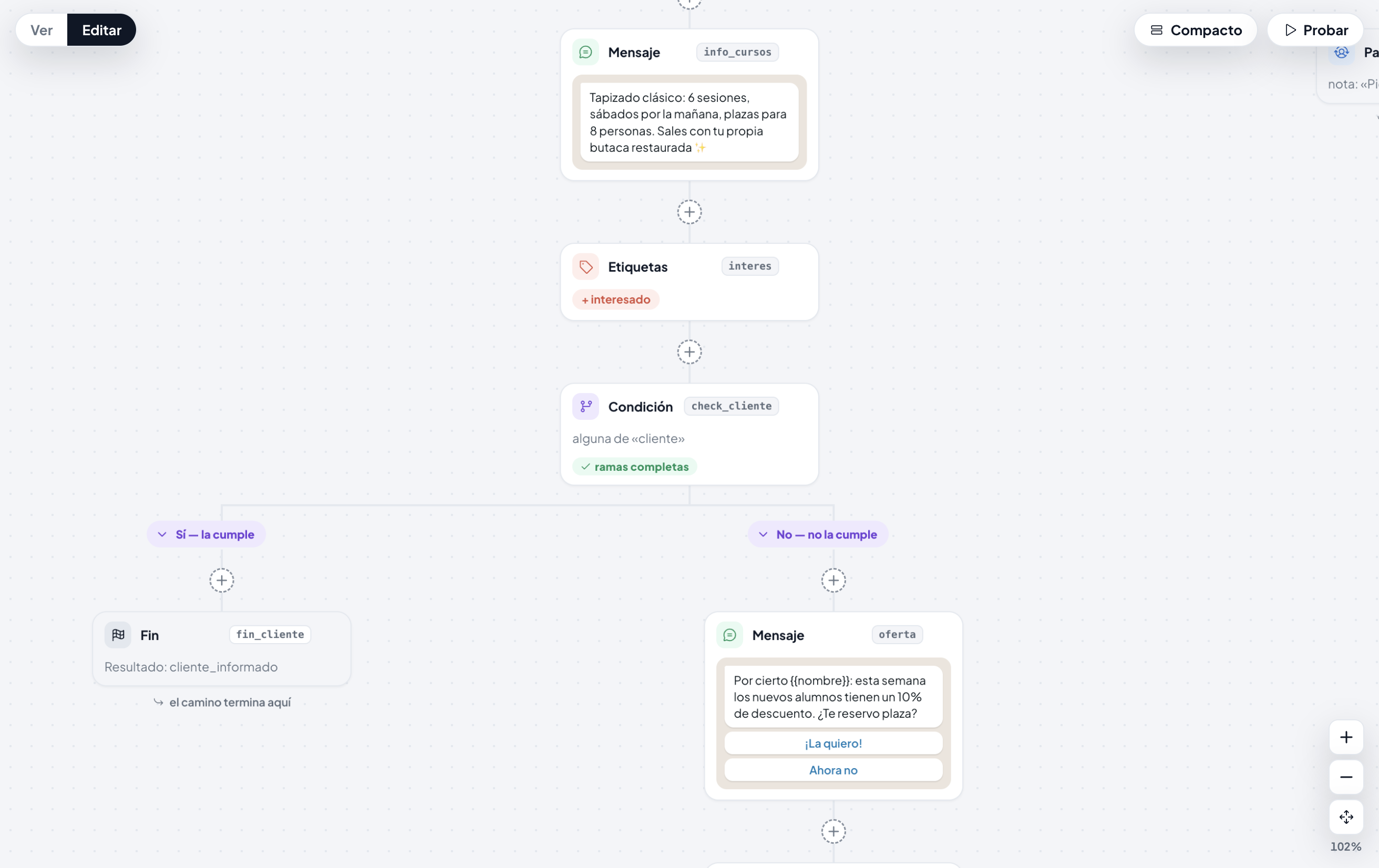
A «Condición» step branches on what we already know about the contact, without asking them anything.
- Press any + on the canvas, where you want the step. The gap arms and the palette opens naming exactly where the step will land: «Insertando después de p3» (inserting after p3).
- Choose «Condición», in the «Lógica» (logic) group.
- In the inspector, choose the category first and then the verb.
- Fill in the condition and, where it applies, the «en los últimos N días» (in the last N days) time window.
The six condition categories
- «Etiquetas» (tags) — what your team has marked on the contact.
- «Actividad de campañas» (campaign activity) — what they received, replied to, which link they clicked.
- «Compras» (purchases) — their purchase and spend history in your store.
- «Flujos» (flows) — automatic conversations they completed.
- «Formularios» (forms) — capture forms they submitted.
- «Consentimiento» (consent) — their marketing opt-in: «Marketing» or «No».
One condition uses a single category: they do not mix. You can stack several rows, and then all of them must be true.
Branches and settings are not the same thing
On the canvas, a branch is a real path: the contact’s choice or qualification. It is drawn as its own column, in violet, and you can work inside it.
A setting — «pasa al equipo» (hand over to the team), «termina el flujo» (end the flow), «sigue esperando» (keep waiting) — is a configured exit, not a path that deserves a column. It shows as a quiet row under the card.
When a branch is left half-built, the card says so in its header: «⚠ 2 ramas vacías» (2 empty branches), «⚠ 1 botón sin rama» (1 button with no branch).
Buttons that lead nowhere yet
On a message card with buttons, each button declares its destination. If it already has a branch you see → rama «Precios» and can jump into it. If not, you see the question «¿Qué hace este botón?» (what does this button do?), which creates the branch — and the wait step if one is needed — in a single gesture.
Publishing
«Publicar» (publish) is disabled while any warning is open. The canvas’s warning count lists them, each behind its step’s id, under «No se puede publicar hasta resolverlos» (you cannot publish until you resolve them).
Before publishing, two questions appear where they apply and must be resolved:
- «Botones sin rama propia» (buttons with no branch of their own) — a button with no branch is resolved by its text, exactly like a typed answer. You can create its branch or accept that the text decides.
- «Botones que suenan a baja» (buttons that sound like an opt-out) — if a button is titled «Baja» or «Stop», tapping it applies the opt-out and its branch never runs. The app shows you so you decide knowingly.
Publishing is also refused with unapproved templates, template holes nobody can fill, deleted files, and steps that jump to themselves.
When everything is clean, «Publicar» confirms: «Flujo publicado — versión N, ya está activo».
Watching it run
The flow’s page shows the canvas read-only plus four tabs — «Flujo» · «Ejecuciones» (runs) · «Entradas» (entries) · «Reparto» (allocation) — with the summary above: how many entered, how many are still inside, how many completed, how many were handed to the team and how many opted out.
A flow with history cannot be deleted: it is archived. The app explains this in the menu itself rather than hiding the option.
Still stuck? Contact support