
Install Konverda on your phone
Konverda is added to your phone's home screen and opens like an app. Here are the steps on iPhone and Android, where notifications are turned on, and what you can do from the phone versus what stays on the computer.
On this page
Konverda is not downloaded from an app store: you add it to your home screen from the browser itself. The result is the same as an app — its own icon, full screen, no browser bar — and it takes two taps.
What you get by installing it:
- A Konverda icon on your home screen, next to the rest.
- It opens full screen, with no address bar and no tabs.
- Your conversations live: messages arrive exactly as they do on the computer, with nothing to reload.
- No signing in again every time you open it.
Konverda is deliberately not in the App Store or on Google Play: it is the same web application you use on the computer, so it updates itself and does not depend on a store approving every change.
On iPhone and iPad
Safari is the only browser on iPhone that can add a website to the home screen, so open app.konverda.com in Safari — not Chrome, and not inside another app’s browser.
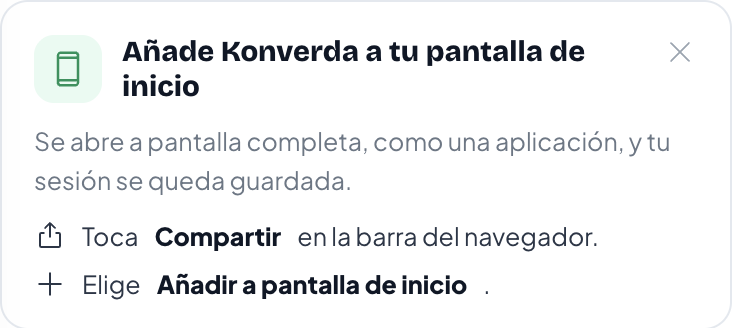
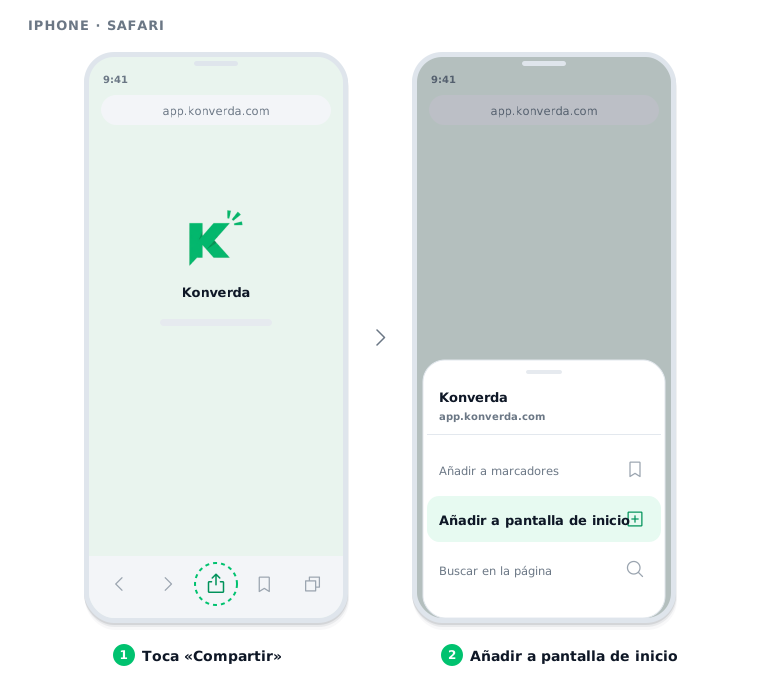
- Open app.konverda.com in Safari and sign in.
- Tap Share — the square with the upward arrow, in the bottom bar.
- Scroll down the list and choose Add to Home Screen.
- Confirm with Add. The icon appears on your home screen.
On Android
In Chrome, Konverda offers it to you: open «Conversaciones» (conversations) and you will find a card at the end of the list with an «Instalar» (install) button.
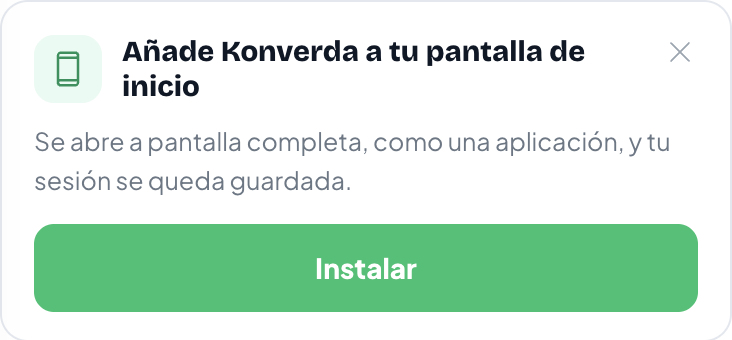
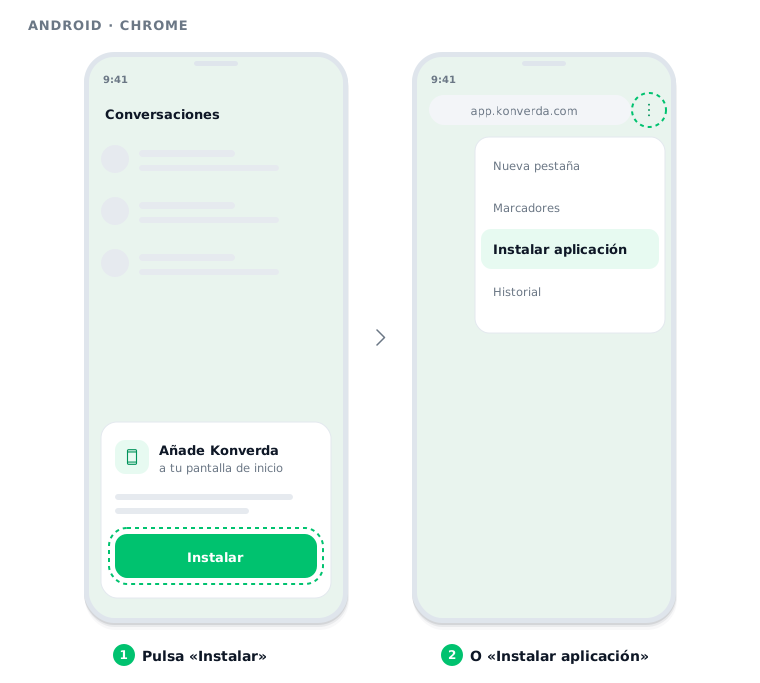
- Open app.konverda.com in Chrome and sign in.
- In «Conversaciones», scroll to the end of the list and tap «Instalar».
- Confirm in Chrome’s prompt.
If you dismissed the card, you can still do it from Chrome’s menu: the three dots at the top right → Install app.
What works from the phone
The phone is built for answering, not for building. From your phone you can use:
- «Conversaciones»: read, reply, assign, tag, send voice notes, photos and documents.
- «Notificaciones» (notifications): what happened while you were away.
- «Mi perfil» (my profile): your details, your photo and your password.
- «Cuenta» (account): your plan and your invoices, to read.
The rest of Konverda — campaigns, waves, flows, templates, forms, segments, reports — is used from the computer and does not appear in the phone’s menu. If a link takes you to one of those pages, you will see the note «Disponible en el ordenador» (available on the computer) and a button back to «Conversaciones». That is deliberate: a flow editor or a campaign needs screen, and we would rather tell you than hand you a narrow version you cannot work in.
On a tablet in landscape, or on any screen 1024 pixels wide or more, you get the whole of Konverda.
Turning on notifications
With Konverda installed, your phone can notify you even while the app is closed: a new message, a window about to close, a conversation assigned to you. You turn them on once per phone, from «Conversaciones» or from «Mi perfil» (my profile) → «Avisos» (notifications).
Everything else — the steps on Android and on iPhone, what arrives, who gets it and how to switch it off — is in Notifications on your phone.
How it updates
By itself. Every time you open Konverda it checks for a new version and loads it. If a new version appears while you have it open, a quiet bar shows at the bottom — «Hay una versión nueva disponible» (a new version is available) — with an «Actualizar» (update) button: press it when it suits you.
Messages are never held back by any of this: a conversation is always fetched from the server at the moment you read it. The only thing that can lag is the application itself, until you open it again.
If something goes wrong
- The install card does not appear (Android). Either it is already installed, or you dismissed the card. Use Chrome’s menu → Install app.
- The app looks wrong after an update. Close it completely and open it again.
- It asks you to sign in every time. Usually the browser clearing data on close, or private mode. Open it from the home-screen icon, not from a private tab.
- Notifications do not arrive. Check in the phone’s settings that Konverda is allowed to notify, and in «Mi perfil» → «Avisos» that the switch is on. On iPhone, only from the installed app. If a phone has not opened Konverda in weeks, open it once: notifications re-arm by themselves.
Still stuck? Contact support