
Notifications on your phone
Konverda can notify you on your phone when someone writes to you, when a window is about to close, when a conversation is assigned to you, or when Centinela spots a possible opt-out. Here is how to turn them on, what arrives, who gets what, and how to switch them off.
On this page
With Konverda installed on your phone you already see conversations arrive live while you have it open. Notifications are the next step: your phone tells you even when the app is closed and the phone is in your pocket.
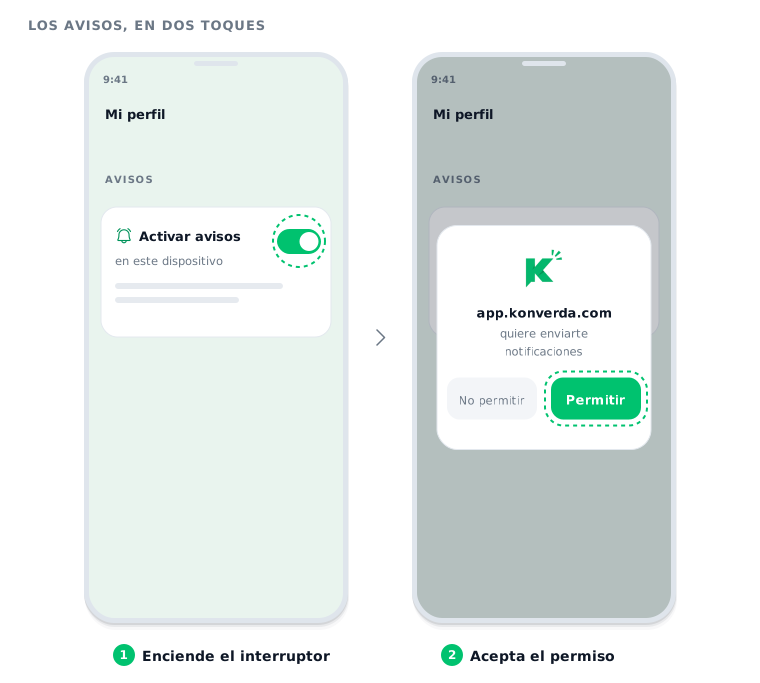
In the app they carry Konverda’s own name for them, «Avisos» (notifications), which is what the steps below say. You turn them on once per phone, and it takes two taps.
What Konverda’s notifications are
They are your phone’s own notifications: they appear in the notification bar with Konverda’s icon, exactly like any other app’s. What is different sits underneath, and it is the same difference as with the install: no App Store, no Google Play. The browser already knows how to receive notifications, and Konverda uses that.
Three things worth knowing from the start:
- They are turned on per device, not per account. Your phone and your tablet are two separate decisions, and the computer gets none: Konverda is already open in front of you there.
- Your phone has to allow them. Konverda asks for the permission; the one who grants it is the operating system, with its own dialog, and you can take it away at any time from the phone’s settings.
- Neither mobile data nor an open app is required. The notification reaches the phone even if you closed Konverda hours ago.
How to turn them on
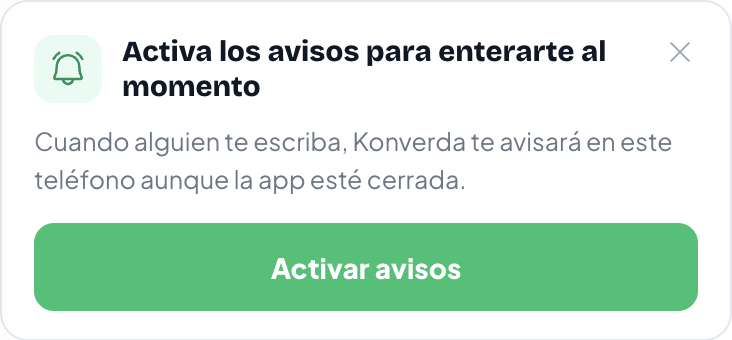
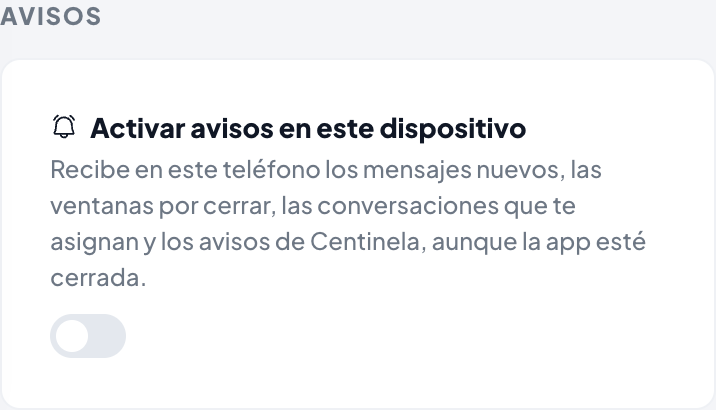
There are two places and it is the same switch: the card at the end of «Conversaciones» (conversations) and «Mi perfil» (my profile) → «Avisos» (notifications). Whichever you use, the result for that phone is identical.
On Android
It works both from the browser and from the installed app: if you turn notifications on in Chrome and then add Konverda to your home screen, the permission travels with you and nothing has to be asked again.
- Open Konverda on your phone.
- In «Conversaciones», scroll to the end of the list and tap «Activar avisos» (turn on notifications). Or go to «Mi perfil» → «Avisos» and switch on «Activar avisos en este dispositivo» (turn on notifications on this device).
- Accept the permission your phone asks for.
You will know it worked because the switch stays on and the phone appears in the list under «Mi perfil» → «Avisos» marked «Este dispositivo» (this device).
On iPhone
On iPhone, notifications only work from the app installed on the home screen. In Safari you will not see the switch but a line explaining why: that is Apple’s rule, not our decision.
- Install Konverda on your home screen (the steps are here).
- Open it from the icon, not from Safari.
- Go to «Mi perfil» → «Avisos» and switch on «Activar avisos en este dispositivo».
- Accept the permission your iPhone asks for.
What arrives
Four things, and no more. Each one names the person, and tapping it opens that conversation:
- A new message. «María López: ¿Sigue disponible el jueves?» — the contact’s name and what they wrote.
- A window about to close. «La ventana con María López se cierra en 2 h» (the window with María López closes in 2 h), so you still have time to reply without a template.
- A conversation assigned to you. «Ana te asignó una conversación» (Ana assigned you a conversation).
- A Centinela alert. «Pedro escribió algo que parece una baja» (Pedro wrote something that looks like an opt-out), when a reply may be an opt-out and somebody has to look at it.
Campaigns, waves, templates and reports do not reach the phone. None of that is urgent: it stays in «Notificaciones» (notifications) and, where it applies, in your email.
Three details of the behaviour:
- One notification per conversation. If María writes three times you do not collect three notifications: the latest replaces the previous one and the phone buzzes again. Carlos, on the other hand, is a separate notification.
- The number on the icon. With Konverda installed, the icon carries the number of unread conversations — the same one you see in the menu. Every notification brings it up to date, and opening the app clears it.
- There are no quiet hours. A message at 23 is an opportunity, and the one who decides whether it should make a sound at that hour is your phone, with its Do Not Disturb.
Who gets which notification
A notification goes to whoever has something to do, not to the whole team:
- A new message goes to the person responsible for that conversation. While the conversation has no owner, it goes to everyone on the team who can reply, because any of them can pick it up.
- The closing window goes to whoever is responsible for that conversation.
- The assignment goes to whoever receives it. If the conversation falls to you through the automatic hand-out when the contact writes, you do not get two notifications: the message already told you.
- Centinela goes to whoever runs the workspace.
And one rule that saves a great many notifications: if you have that conversation open on screen, we do not notify you. You are already looking at it. If a flow is handling the message, we do not either: you hear from us when the flow is done and the conversation belongs to a person again.
How to switch them off
Three ways, depending on what you want:
- This phone, from Konverda. «Mi perfil» → «Avisos», and switch it off. It stops immediately.
- Another phone you no longer use. Under «Mi perfil» → «Avisos» you have the list of devices with notifications on, with the workspace each was activated in and when it was last seen. «Quitar» (remove) takes it out of the list. This is visible from the computer too, which is where it is usually done.
- From the phone itself. In your phone’s settings you can take the permission away from Konverda. That is the definitive route: with no permission there are no notifications, whatever the switches say.
Signing out on a phone also silences it: that device leaves the list and stops receiving notifications until somebody turns them on there again.
If something goes wrong
- The switch is not there. On iPhone, open Konverda from the home-screen icon: it does not appear in Safari. On a computer it does not appear either — notifications are a phone thing.
- You said no to the permission and now you cannot turn them on. That «no» is stored by the browser, not by Konverda, and it has to be undone there. In Chrome: the padlock (or the three dots) next to the address → Permissions → Notifications → Allow. On iPhone: Settings → Notifications → Konverda → Allow Notifications. Then go back to «Mi perfil» → «Avisos» and switch it on.
- The switch is on and nothing arrives. Check Do Not Disturb or your phone’s focus mode: it silences every app’s notifications, ours included. On Android, also check that battery saving is not restricting Konverda.
- The phone had not opened Konverda in weeks. Phones drop subscriptions they do not use. There is nothing for you to do: open Konverda once and it subscribes again by itself, without asking for permission a second time.
- Your session expired. Notifications keep reaching that phone. Tapping one asks for your password and, as soon as you are in, leaves you in the conversation the notification was about.
- More than one person uses the phone. Notifications belong to whoever is signed in. If you share it, sign out when you finish: that takes the phone out of the list and it stops receiving yours.
Read next
- Install Konverda on your phone — the icon on your home screen, in two taps.
Still stuck? Contact support